Impression d'étiquettes

Avant de commencer la réalisation, notez la marque et le type d'étiquettes que vous avez l'intention d'utiliser.
Pour imprimer un mailing d'étiquettes :
- Cliquer sur Fichier > Nouveau > Étiquettes.
- Sur l'onglet Options, assurez vous que la case à cocher Synchroniser le contenu est cochée.
- Sur l'onglet Étiquettes', sélectionnez Base de données et Table. Sélectionnez la Marque des étiquettes à utiliser et sélectionnez ensuite le type d'étiquettes. Template:Documentation/Tip
- Cliquez sur la flèche sous Champs de base de données. Sélectionnez le premier champ à utiliser dans l'étiquette (dans cet exemple Titre). Cliquez sur la flèche de gauche pour déplacer le champ dans la zone Texte de l'étiquette.
- Continuez à ajouter les champs et insérez la ponctuation souhaitée, les espaces et les sauts de ligne jusqu'à ce que l'étiquette soit composée. La figure ci dessous montre l'étiquette complétée.
- Cliquez sur Nouveau document. Vous avez maintenant un nouveau document d'une seule page contenant une série de cadre, un pour chaque étiquette du type sélectionnée et rempli des champs d'adresses de la source de données que vous avez sélectionnés. Assez souvent, certains des champs de la source de données d'adresses ne seront pas utilisés, laissant des lignes vides dans l'étiquette. Si ce n'est pas important, vous pouvez sauter les paragraphes suivants et aller directement à l'étape 7, sinon, continuez comme décrit ici.
- Assurez vous d'abord que les cadres d'étiquette affichent le contenu des champs (titres de la source de données) plutôt que les noms de champs sous-jacents. Si ce n'est pas le case, appuyez sur Ctrl+F9 ou sélectionnez Affichage > Nom de champs pour basculer l'affichage.
- Assurez vous ensuite que vous pouvez voir les caractères non imprimables, tels que les marques de paragraphe, sauts de ligne, etc. S'ils ne sont pas déjà visibles, sélectionnez Affichage > Caractères non imprimables à partir de la barre de menu ou appuyez sur Ctrl+F10, ou encore, cliquez sur l'icône
 dans la barre d'outils Standard.
Vous verrez alors que la séparation des champs d'adresse est créée par des retours à la ligne forcés
dans la barre d'outils Standard.
Vous verrez alors que la séparation des champs d'adresse est créée par des retours à la ligne forcés - Click in the first label, at the end of the last data source address field in the first line of the label. Press Delete to remove the new line character and then press Return (or the Enter key) to insert a paragraph marker. Repeat this action for each line in the address. If the line spacing in the first label is not satisfactory, you may wish to correct this before proceeding, by modifying the paragraph style associated with the address. Unless you have changed it, the address uses the Default style.
- Click again at the end of the first paragraph to be conditionally suppressed and then select Insert > Fields > Other. Select the Functions tab and then click on Hidden Paragraph in the Type column. Now click in the Condition box and enter the details of the condition that defines a blank address field. It has the general form of: ![Database.Table.Database field] where the ‘!’ (NOT) character indicates the negative case and the square brackets indicate the condition. For example, in our Points database the condition to test if the Company field is empty would be ![Points.Sheet1.Company] as illustrated in Figure 12. To test for multiple conditions, use the operators AND and/or OR between the conditional statements, for example: ![Points.Sheet1.Title]AND![Points.Sheet1.Last Name] Click Insert, but do not close the dialog until all lines have been amended.
- Repeat for each paragraph to be conditionally suppressed, remembering to advance the cursor to the end of the line in question before changing the last element of the condition and Inserting the result.
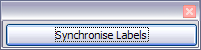
- Remembering that we selected Synchronise contents earlier, you should now be able to see a small window containing a button labelled Synchronise Labels. Click on this button and the hidden paragraph fields are propagated to all the labels in your document.
 , plutôt que par des marques de paragraphes
  . Comme la suppression des lignes vides dépend des paragraphes masqués, et non des lignes, vous devez remplacer les retours à la ligne forcés par des sauts de paragraphes, comme suit..

The objective of step c) is to replace all line breaks at the end of data source address fields with paragraphs. Sometimes the address data field may be longer than the width of the label and will wrap to the next physical line: make sure that you are not misled by this into deleting and replacing anything other than line break characters. The last paragraph of the label address block ends with a special field, Next record:Database.Table (Next record:Points.Sheet1 in our example), and the Hidden paragraph field MUST be inserted before this field. This can generally be accomplished by clicking at the end of the paragraph and then using the Left Arrow key once to skip back over it. A clue that you omitted this action is the observation that some records have been skipped and are missing from the final output.
 You now have a template suitable for future use with the same data source and type of label. If you wish to save it, use either File > Templates > Save as, or save it as an Open Document Text Template (.ott) into the private template directory (folder) that you have previously defined in Tools > Options > OpenOffice.org > Paths > Templates.
- Click File > Print. In the message box that appears, click Yes.
- In the Mail Merge dialog, you can choose to print all records or selected records. To select records to be printed, use Ctrl+click to select individual records. To select a block of records, select the first record in the block, scroll to the last record in the block, and Shift+click on the last record.
- Click OK to send the labels directly to the printer. If you prefer to save the labels to a file, perhaps to allow some later editing such as changing the typeface or paragraph format, then you should select File in the output section of the Mail Merge dialog, rather than using the default Printer selection. This changes the dialog to highlight the Save merged document section, where Save as single document is pre-selected. In this case, clicking OK brings up the Save as dialog, where a file name can be entered for the saved labels. If you did not save the prototype label fields document (template) in step 6f, then you are prompted to do so now by another Save as dialog.


In either case, whether printing or saving to file, despite there apparently being only one page of labels, the printed or saved output will be expanded to include all of the selected records from the data source.
Editing a saved file of mailing labels
To edit a saved file of mailing labels, open the saved label file in the normal way. You will be prompted as to whether you wish to update all links. Choose No for the following reason: The first label on the page is termed the “Master Label” and all other labels are linked to it: if you update the links then all labels will end up containing the same data, which may not be what you want.

You can edit individual records in the normal way, by highlighting and changing the font name, for example.
However, you cannot edit all labels globally (for example, to change the font name for all records) by the technique of selecting the entire document. To achieve this result you have to edit the paragraph style associated with the label records as follows:
- Right-click any correctly spelled word in a label record. Select Edit Paragraph Style from the pop-up menu. (Note: If you click on a misspelled word, a different menu appears.)
- Then from the Paragraph Style dialog, you can make changes to the font name, the font size, the indents, and other attributes.
| Content on this page is licensed under the Creative Common Attribution 3.0 license (CC-BY). |

