Using Interactions
Using Interactions
Interactions are things that happen when you click on an object in a slide. They are typically used with buttons or images, but text objects can also have interactions. Possible interactions include: go to previous slide, go to next slide, go to first slide, go to last slide, go to page or object (such as a specific slide or named object within a slide), go to document, play sound, or run a macro.
To apply an interaction to an object (or change an interaction applied to an object), right-click on the object and choose Interaction from the pop-up menu. The Interaction dialog (Figure 184) appears. Select an interaction from the Action at mouse click drop-down list.
With some interactions, after you select one, the dialog changes to offer more choices. For example, Figure 185 shows the Interaction dialog after choosing Go to page or object.
 |
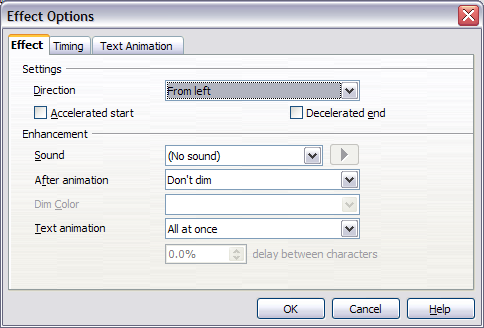
A sound interaction can also be applied using the Effect Options dialog (Figure 180). |


| Content on this page is licensed under the Creative Common Attribution 3.0 license (CC-BY). |