Creating named ranges
From Apache OpenOffice Wiki
The printable version is no longer supported and may have rendering errors. Please update your browser bookmarks and please use the default browser print function instead.
This section provides different ways to create named ranges in spreadsheets.
To define a name for a cell range, do the following steps:
- Select the cell range and click to open the Define Names window.
- Enter the name for the range in the Name field.
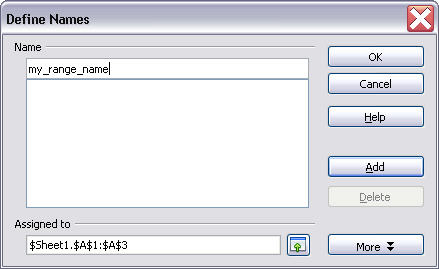
- Click OK to close the window.

To automatically define names for rows or columns in a
cell range, do the following steps:
- Select the cell range and click to
open the Create Names window.
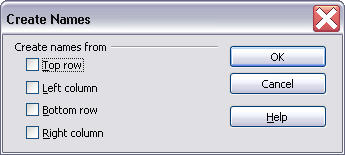
- Select the options in the Create names from field. For example, if you select the Top row option, each column without the top row is defined as a range, and the text in the top row is used as the name of this range automatically.
- Click OK to close the window.

To define a cell reference for a label range, do the following
steps:
- Click to open the Define
Label Range window.
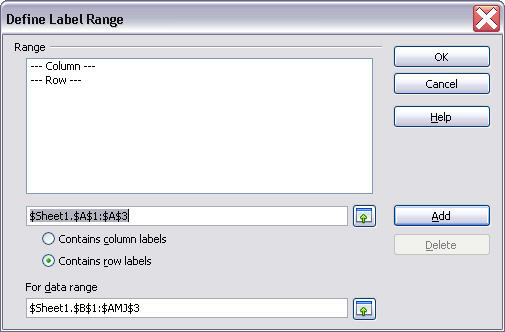
- Click the editing area in the Range field, and then select a cell range as the reference. The label range is set by default. For example, if you select a certain row in your spreadsheet, all the columns under this row are defined as a label range by default.
- To change the label range, click the For data range field and select a new label range.
- Click OK to close the window.


