Difference between revisions of "Math customizations"
From Apache OpenOffice Wiki
| Line 17: | Line 17: | ||
<ol> | <ol> | ||
<li>Start the formula editor and go to '''Format > Font size'''.</li> | <li>Start the formula editor and go to '''Format > Font size'''.</li> | ||
| − | + | [[Image:MathFontSize.png|Changing font size]]<br>Changing the font size for a formula. | |
<li>Select a larger font size under “Base Size" (top-most entry), as shown below.</li> | <li>Select a larger font size under “Base Size" (top-most entry), as shown below.</li> | ||
| − | + | [[Image:MathBaseSize.png|Edit Base Size]]<br>Edit "Base size" (top) to make a formula bigger. | |
</ol> | </ol> | ||
Revision as of 11:35, 27 July 2007
Customizations
Formula editor as a floating window
As seen in Figure 1, the formula editor can cover a large part of the Writer window. To turn the formula editor into a floating window, do this:
- Hover the mouse over the editor frame, as shown below.
- Hold down the Control key and double-click.
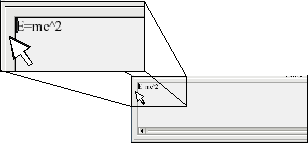
Hold down the Control key and double-click on the border of the math editor to turn it into a floating window.

The figure below shows the result. You can make the floating window back into an embedded frame, using the same steps. Hold down the Control key and double-click the window frame.

Equation editor as a floating window.
How can I make a formula bigger?
This is one of the most common questions people ask about OOoMath. The answer is simple, but not intuitive:
- Start the formula editor and go to Format > Font size.
- Select a larger font size under “Base Size" (top-most entry), as shown below.

Changing the font size for a formula.

Edit "Base size" (top) to make a formula bigger.
The result of this change is illustrated below.
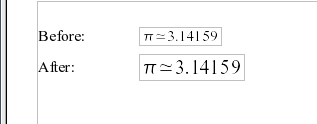
Result of changing the base font size.


