Difference between revisions of "Documentation/AOO4 User Guides/Draw Guide/Combining Multiple Objects/Merging Subtracting or Intersecting Shapes/Practical Example"
From Apache OpenOffice Wiki
< Documentation | AOO4 User Guides/Draw Guide | Combining Multiple Objects | Merging Subtracting or Intersecting Shapes
(Created page with "{{DISPLAYTITLE:Practical Example}} {{Documentation/DG4CombMultObjTOC |ShowPrevNext=block |PrevPage=Documentation/AOO4_User_Guides/Draw Guide/Combining Multiple Objects/Merging...") |
m |
||
| Line 35: | Line 35: | ||
{{CCBY}} | {{CCBY}} | ||
| − | [[Category: | + | [[Category:Draw Guide (Documentation)]] |
Latest revision as of 12:20, 7 April 2026
Practical Example
The following example shows how to use the merge functions to create a complex shape—a knife with a wooden handle.
- Draw an ellipse and then a rectangle overlapping half of its width.
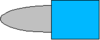
- Select both shapes, right-click, and choose Shapes → Subtract from the pop-up menu. The result should resemble the shape to the right, as shown below:


- Draw another rectangle and put it over the top half of the ellipse. Then subtract again.


- Draw a small ellipse covering just the lower right corner and subtract again.


- The knife blade is now complete. To make the handle, draw a rectangle and an ellipse as shown.


- Merge the shapes.


- Group this image with the previous one.


| Content on this page is licensed under the Creative Common Attribution 3.0 license (CC-BY). |

